


TeamViewer Remote Control
4.420.07K Reviews
App Specs
- Version
- 15.80.207
- Updated On
- License
- Free
- Downloads
- 100,000,000+
- Developer
- TeamViewer
- Categories
- Business
- Platform
- Android, iOS
Screenshots

 Analysis by AppCompare
I judge a remote-access app by one practical question: does it save me a trip back to my computer, or does getting connected take longer than the task itself? TeamViewer Remote Control is built for those moments when a file, setting, or desktop-only task is just out of reach. Instead of asking someone nearby to find the right document or waiting until I get home, I can use my phone to reach a computer that is ready for a remote session.
That convenience matters most when the need is small but time-sensitive: checking a detail in a spreadsheet, retrieving a file, or helping someone who cannot describe what is on their screen. It is not a replacement for a laptop when I need to work for hours, but it can turn an inconvenient interruption into a short task. My overall impression is that the app is most valuable when I prepare for remote access before I need it.
What remote access is actually good for
A phone screen is a useful emergency window into a computer, not a full-size workstation. I would reach for this app to look something up, make a modest change, or guide a person through a problem. I would not choose it for extended writing, detailed design work, or anything that depends on precise mouse movement for a long stretch. That distinction helps set expectations: the app can remove the need to be physically at the computer, but it cannot make a small touchscreen feel like a desk setup.
For a realistic everyday example, imagine leaving a work document on your home computer and realizing during a commute that you need one figure before a meeting. If the computer is online and remote access has been arranged, a quick connection can be more practical than asking someone else to search through folders. I would still keep a copy of frequently needed files in a suitable cloud service; remote control is a helpful fallback, not the best storage plan for everything.
Preparation makes the difference
The first connection is only one part of setup. I would also test access while I am still near the computer, check that the host software is installed on the machine I intend to reach, and make sure I understand which credentials or account steps are needed. The app’s usefulness depends on the computer being available and configured for a connection; installing the phone app alone does not create a remote path to every device.
There is a useful trade-off here. Leaving a computer available can make a remote task possible, but it may not suit every person or every device. If I only need a document, syncing or sending that file ahead of time is simpler and avoids controlling a whole desktop. If I need to interact with a program or reach a file I did not anticipate needing, remote access earns its place.
Choosing the right tool for the job
Compared with cloud storage, TeamViewer gives me interaction with the computer itself rather than just a copy of a file. Compared with a video call, it can let me operate the desktop instead of asking someone to point a camera at a screen. Those differences are useful, but they also mean a remote-control session needs more preparation and attention than opening a shared document or making a call.
Worth Reading Before You Choose

Baby Panda World Brings Quick Play to Modern Phones, but Its Game Library Feels Busy

ESPN’s Live Game View Makes Following Close Games Easier

QuizzLand Review: A Good Fit for Short Trivia Breaks, Not Every Player

Basketball Stars: Multiplayer Is Fast, but Can It Recover When Matches Go Wrong?

WEBTOON Turns Phone Updates Into a Better Reading Routine

Link to Windows Runs on Shared Habits, Not Social Feeds
I would also think about the device I am connecting from. A phone is convenient when I am away from my desk, but it is not always comfortable for navigating a crowded desktop. For a longer session, I would prefer a larger screen and a more suitable input method if available. For a one-off check or a quick assist, the phone-first approach is exactly the point.
Who will get the most from it
This is a strong fit for people who occasionally need to reach a personal computer while away, and for someone who helps family or colleagues with computer tasks. It can also suit work routines where a specific desktop program or file cannot simply be moved to a phone. If your needs are limited to exchanging documents, sharing folders, or editing files collaboratively, ordinary cloud tools are likely to involve less friction.
Before relying on remote access for an urgent task, I would make a short practice connection and try the actions I expect to use: finding a file, switching windows, and entering text. A quick rehearsal reveals whether the phone controls feel comfortable and whether the computer is ready. It also prevents the first real attempt from happening under deadline pressure.
TeamViewer is a free business app from TeamViewer, with a 4.4 average from around 1.1 million ratings and over 100 million installs. It is rated for everyone, and version 15.77.140 requires Android 8.0 or later. The app also includes in-app purchases, with listed items ranging from $0.99 to $610.80, so I would check the current purchase details if I expect to use paid options rather than assume every use is covered by the free app.
Getting Started with TeamViewer Remote Control
First things first, downloading and setting up TeamViewer Remote Control was a breeze. Available for both Android and iOS, you simply head over to your app store, hit download, and you’re halfway there. The app is lightweight, so it doesn’t hog your phone’s storage, which is always a plus.
Once installed, the setup process is pretty straightforward. You’ll need to install the TeamViewer software on your PC or Mac as well. Don’t worry, the app guides you through the whole process like a friendly tech-savvy buddy. You’ll have a unique ID and password to secure your connection, ensuring your data is safe and sound.
Ease of Use
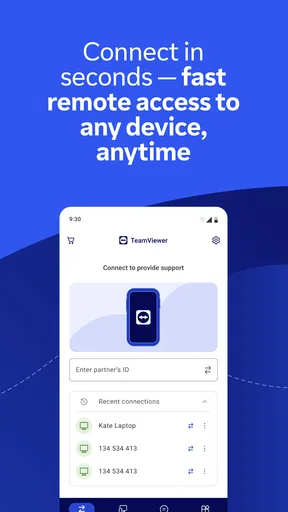
Now, let’s talk about user experience. The interface is clean and intuitive, making it easy even for the least tech-savvy among us to navigate. From the main screen, you can quickly connect to your computer by entering your ID and password. It’s like having a magic portal to your desktop right in your pocket.
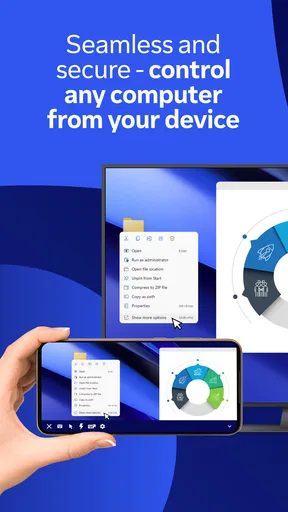
Once connected, you can see your computer’s screen in real-time, and the responsiveness is surprisingly good. The app manages to deliver a smooth experience; even detailed tasks like editing documents or managing files felt seamless. It’s almost like you’re physically in front of your computer. Magic, right?
Features That Stand Out
The app is packed with features that cater to a wide range of needs. Some of my favorites include:
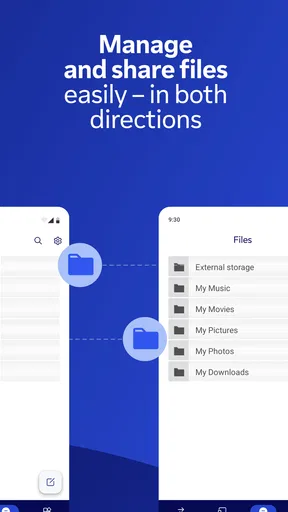
- File Transfer: Need to send a file from your computer to your phone or vice versa? TeamViewer has got you covered. The file transfer feature is fast, secure, and incredibly handy.
- Remote Printing: You can print documents from your computer to a nearby printer, even when you’re miles away. Perfect for those last-minute print jobs!
- Wake-on-LAN: This feature lets you wake up your computer remotely, so you don’t have to leave it running all the time. It’s as cool as it sounds.
Plus, the app supports multi-monitor displays, which is a lifesaver for those of us who work with multiple screens.
Performance and Security
Performance-wise, TeamViewer Remote Control is impressive. It handles connections smoothly, and I didn’t experience any lag or disconnects, even when working with large files. The app is designed to adapt to varying network conditions, ensuring a stable connection as much as possible.
When it comes to security, the app doesn’t skimp. It uses end-to-end encryption, so you can rest easy knowing your data is protected. Plus, the two-factor authentication adds an extra layer of security, which is always a welcome feature in today's digital age.
Final Thoughts
In the realm of remote access apps, TeamViewer Remote Control stands out as a reliable, feature-rich solution that’s easy to use and delivers on its promises. Whether you’re a tech enthusiast or someone who just needs to access their computer remotely once in a while, this app is worth checking out.
So, if you haven’t already, give it a try. It might just become one of those apps you can’t live without!
Pros
- Easy remote access to devices.
- Cross-platform compatibility.
- Secure connection protocols.
- User-friendly interface.
- Supports file transfer.
Cons
- Requires stable internet connection.
- Limited features in free version.
- May lag on low-end devices.
- Can be complex for beginners.
- High data usage.
FAQs for TeamViewer Remote Control
What is TeamViewer Remote Control used for?
TeamViewer Remote Control is designed to provide remote access and support for computers and mobile devices. It allows users to connect to another device, troubleshoot issues, transfer files, and manage systems from anywhere in the world. This makes it ideal for IT support, team collaborations, and personal use.
Is TeamViewer Remote Control secure to use?
Yes, TeamViewer Remote Control is secure, employing end-to-end encryption and two-factor authentication to protect your sessions. The application uses industry-standard security protocols to ensure that your data and connections remain safe. Always ensure that you download the app from official sources to avoid security risks.
Does TeamViewer work on both Android and iOS devices?
Indeed, TeamViewer is available on both Android and iOS platforms, allowing users to control devices across different operating systems. The app is optimized for mobile devices, ensuring a seamless experience whether you're connecting from a smartphone or tablet. This cross-platform compatibility is a major advantage for users.
Can I use TeamViewer for free, or is there a subscription required?
TeamViewer offers a free version for personal, non-commercial use. This allows users to access and control their personal devices remotely. However, for businesses and professional use, a subscription is required. The subscription includes additional features and support options tailored to business needs.
How easy is it to set up and use TeamViewer Remote Control?
Setting up TeamViewer Remote Control is straightforward. After downloading and installing the app, users need to create an account and follow the guided setup process. The intuitive interface and user-friendly design make navigation and connection setup simple, even for those with limited technical expertise.


